

How to activate an eSIM: step by step
Install, activate and troubleshoot an eSIM on iPhone and Android - including what to do when the QR code does not scan.
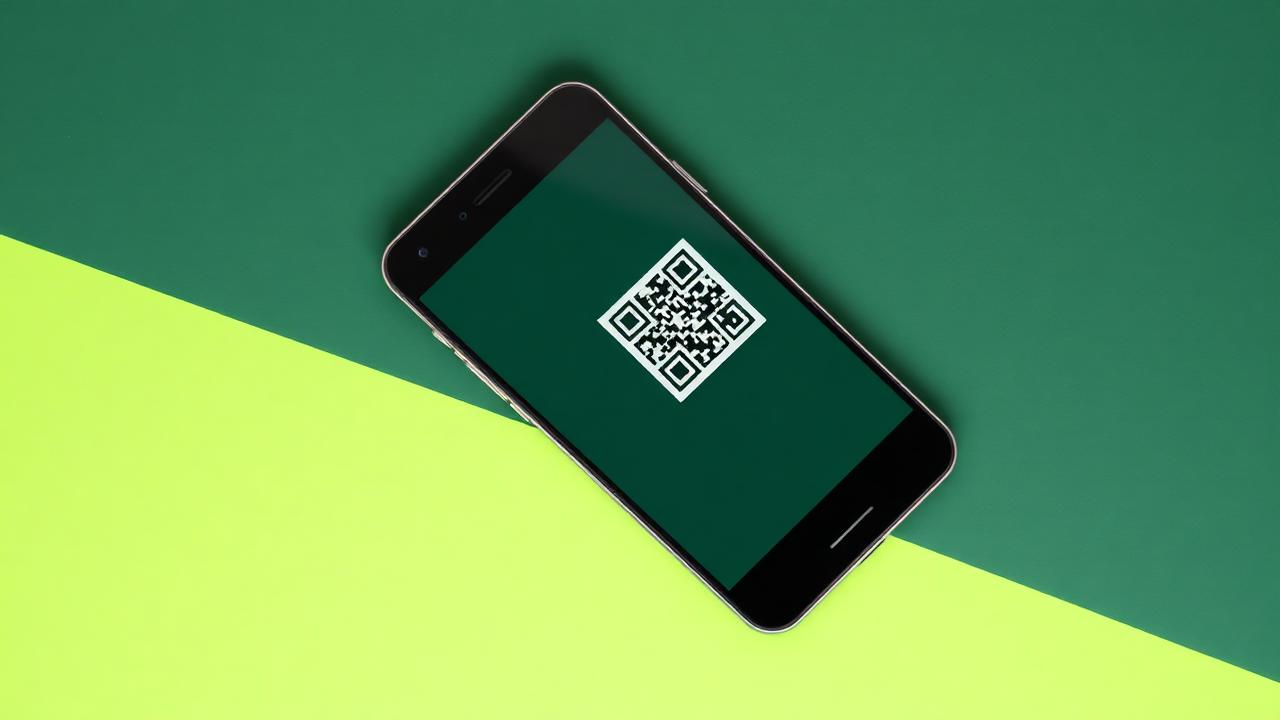
An eSIM is a SIM card written into your phone's hardware. There is nothing to post,
nothing to cut, and nothing to lose. Installing one takes about two minutes on Wi-Fi.
Before you start
- Check that your phone is eSIM capable and carrier-unlocked.
- Stay on Wi-Fi during installation.
- Keep the QR code from your order email — you may need it if you change phones.
iPhone
- Open Settings → Mobile Service → Add eSIM.
- Tap Use QR Code and scan the code from your confirmation email.
- Label the plan (for example "Travel") so you can tell it apart from your home line.
- Set your home SIM as the default voice line and the new eSIM as your mobile data
line. - Switch Data Roaming on for the eSIM only.
Android
Menu names vary slightly by manufacturer.
- Open Settings → Network & internet → SIMs → Add eSIM.
- Scan the QR code, then confirm the download.
- Enable the profile and select it for mobile data.
- Turn on roaming for that profile.
When does the plan start?
Validity begins when the eSIM first connects to a network in your destination — not
when you install it. So you can safely set everything up days before departure.
Troubleshooting
"Unable to add eSIM" — you are usually offline or behind a restrictive Wi-Fi
network. Try mobile data or another network.
No signal after landing — toggle flight mode, then pick the operator manually.
Some networks need up to five minutes on the first attach.
Data does not work but the signal is there — check that the eSIM is selected as the
data line and that roaming is enabled for it.
QR code already used — an eSIM profile can only be installed once. If you deleted
it, contact support and we will reissue it.
Keep reading
 How-To1 min read
How to avoid roaming charges in Europe
Roam-like-at-home has limits. Here is how fair-use policies work, when your operator can bill you extra, and how a regional eSIM keeps costs flat.
Jul 28, 2026
 Regulatory Updates5 min read
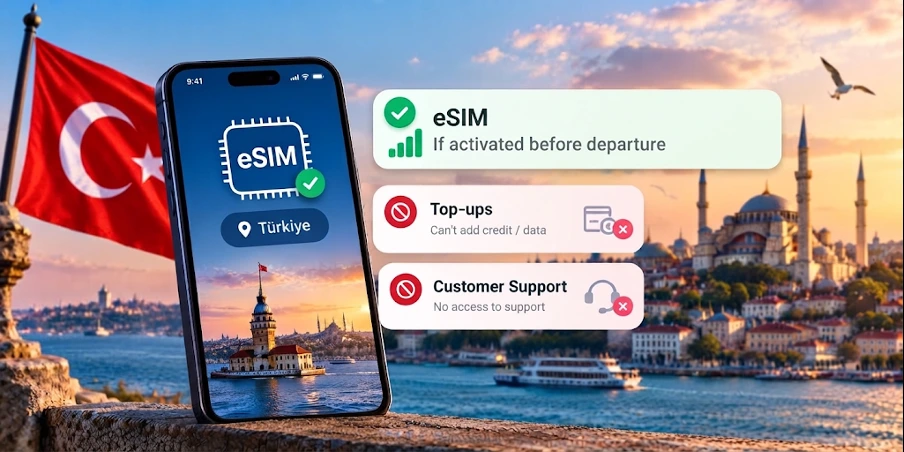
eSIM Ban in Turkey 2026: What Actually Applies
eSIMs are not banned in Turkey - but over 50 providers are blocked. Find out which one still works and how to stay connected without interruption.
Sep 16, 2026
 eSIM Country Picks2 min read
Best eSIM for Turkey: what to buy in 2026
Which eSIM works best in Turkey, how much data you really need, and how to stay online from the moment you land in Istanbul or Antalya.
Aug 10, 2026